"Creativity is a drug I cannot live without."
Cecil B. DeMille

IT 104 Blog

Tech Bits is a blog for my class where we reasearch different websites and PC products.

About me

Click above to a view my profile.

Latest News

Click above for the latest news.

The Battle

Apps, programs, websites, etc.

Tuesday, October 8, 2013

WALKEN DEAD!!!!!!!!!!!! (The Walking Dead)

5 more days!!!!!!!


We're so exciiiiiiited, we got out Gary Busy face on!


Monday, October 7, 2013

Critiquing Blogs!


For class, I'm going to look over the whole entire list of blogs from my classmates.  Some may need a bit of critiquing while some may not need as much.  I'll be looking over each page and give an opinion among each and every one of them.  No hatin' here :)


Pictures of using the programs would be nice just to show you have played around with the programs/apps.  Using skitch to point out dislikes or likes would be nice too.


I really like the background especially with fall here with the colors warm and welcoming. I like how he provides information about himself which is always a good start to let the readers get to know a person. I feel like maybe have the layout a bit more compact, but overall nice blog.


_________________________________________________________________________

I really like how organized the blog is and the template is pretty nice.


There should be an "About Me" section on the side, just to give the readers an idea of who you are real quick.  I like the different columns especially the "Popular Posts."  I like the title headings below. You used Skitch and posted pictures using the the programs which is helpful.  Overall, great job.

_________________________________________________________________________

3. Alexis' Blog
   There should also be a title for the blog. The template seems a bit dark, maybe could use a little more color. Need to use more pictures interacting with the apps and programs to compare the difference of what you like and what not.


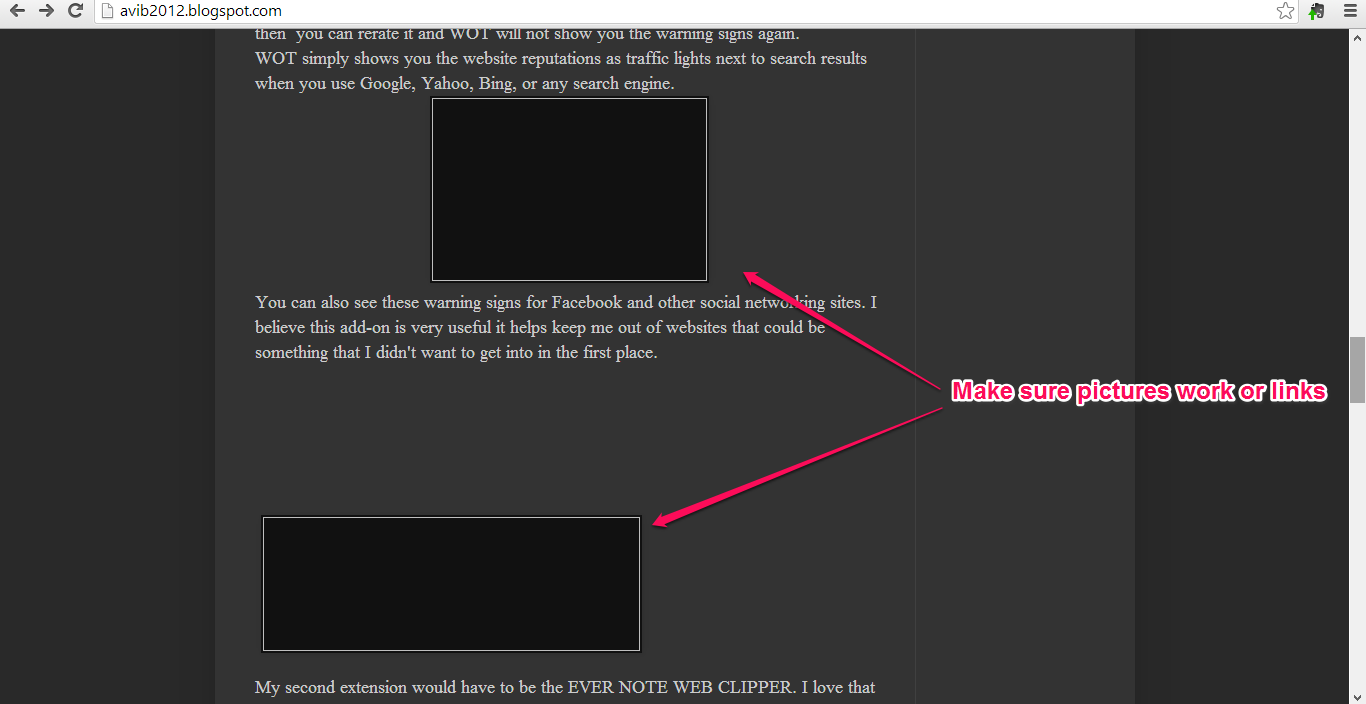
The pictures in one blog wouldn't load at all, might be a broken link.  Add more info about yourself.  Nice job!

_________________________________________________________________________

4. Ted's Blog
http://computertechsystems.blogspot.com/

 I like the transparent background with the water droplets, look realistic with glass. He added pictures on comparing other programs and I can see he used Skitch. The title of the blog needs a little more oomph.

  Add a little more info in "About Me." Overall, nice looking blog!

_________________________________________________________________________


5.
Robert'sBlog
http://redwingrob.blogspot.com

 I like the title of the blog and the font used for it in cursive. The background layout is nice and transparent.  It gives it an artsy look.  I like the add-ons on the right side of the blog with YouTube and the news.  Gives readers something to do while checking out the blog.


In the blogs, pictures should be added of him using the programs and apps comparing them all. The green font that is all capitalize bothered my eyes for a bit. Other than that, great job!

_________________________________________________________________________

6. James' Blog
http://jamesnhill.blogspot.com/

The first thing I noticed about James' blog is the template layout.  I always like transparent backgrounds. The template gives it a nice comforting feel. I noticed his profile was towards the bottom and should be brought up to the top.


I noticed with the blogs he didn't use any screenshots of comparisons between the programs that were used to test out (Google Drive Vs. SkyDrive & OpenOffice Vs. Libre). I like the graphics used for the critique of the blogs. Great job!


_________________________________________________________________________

7. Tyler's Blog
http://jimison0tyler.blogspot.com/

With Tyler's blog, first thing I noticed was the title and the picture.  I find it humorous and interesting.  The blog seems a bit dark and plain, but has really thorough blogs written.

I noticed there were no pictures used interacting with the programs that were assigned for the class to play around with on there.  Nice blog though, he thoroughly wrote well-written blogs on the products and himself.

_________________________________________________________________________

8.
Jane's Blog
http://janiegirls.blogspot.com/
 

I really like the background of Jane's blog.  She should add a picture of herself for her profile. I like how she uses a lot of pictures representing the programs used for class, but needs more interacting with them.

The pictures and the text just need to be aligned better and more organized to make it easier to read.  Nice blog, the pictures bring more attention to me as I looked through it.

_________________________________________________________________________

9. Scotty's Blog
http://thephoenixhub.blogspot.com/

The blog is a bit dark it seems.  Nice that he used pictures comparing the products.  Needs to add a picture of himself on his profile.  He needs to catch up on his blogs too it seems.


The picture here is going off the edge of the column, but that's an easy fix in the layout menu customizing the width.  Nice job on making lists on pros and cons of the programs.


_________________________________________________________________________

10. Amber's Blog
http://amberdawnzie.blogspot.com

I really like the background and the simplicity of it in a classy way.  It's nice she added a picture to it, but I can't seem to find her profile.


The blogs are written thoroughly and organized. Just need to catch up on the blogs.


_________________________________________________________________________

11. Chris' Blog
http://whittstopher.blogspot.com/

I once again like the transparent background here.  He needs to add more pictures interacting with the programs using Skitch.

Great blog post on something personal that happened to you.  Free Snapple stuff! I'm sorry you took a bit of a drink from that fuzzy nucleus lookin' goodness, haha.


_________________________________________________________________________

12. Chris B's Blog

http://lordsfallenpaladin.blogspot.com/

I noticed the background template dark, but in all honesty it matches up with his username "Fallen" along with the graphics which is nice.  It's nice he added a picture of himself.


I like how he added gadgets on the side of different type of news especially towards computer tech.  Good job on adding pictures and using Skitch comparing programs.


This critique was done for class assigned by my teacher in IT104.  I mostly notice that some blogs were plain and simple with no color to it or pictures that bring to my attention, but the good thing about it is there's always a way to fix that.  Hopefully, it benefits the others on a positive note!

Wednesday, October 2, 2013

LibreOffice vs OpenOffice

When it comes to finding office programs, it's all about finding something that truly works, and what would be even better is something free.  Microsoft Office is pretty expensive to buy from $99.99 to $399.99, but if one is willing to take the dive then good for them :).  For those who want something free and can work just as well, they can use LibreOffice and OpenOffice.  Both are open source office programs that offer the same programs like Microsoft Office.

As far as I know, OpenOffice has been discontinued whereas LibreOffice is reigning as the top program to use now.  OpenOffice has faced problems with changing different handlers whereas the former OpenOffice project members created LibreOffice as a trustworthy program that was kept updated.

I had a hard time trying to compare the two because they were practically the same to me within it's appearance, its menus, its interface, etc.  Anyway, here you noticed the interface of both as you begin to pick which program to use:

OpenOffice automatically has the sidebar opened which seems convenient and can be tucked away easily. OpenOffice opened a lot faster than LibreOffice by five seconds on my computer.


 Here is LibreOffice using the document program. They both look similiar besides not having a sidebar.


I have done a lot of PowerPoint presentations in the past, so I was curious about their templates.  It seems OpenOffice offers a lot more and better looking ones than LibreOffice.  Below there are two pictures, there was no templates listed in LibreOffice.  LibreOffice only had a few PowerPoint presentation templates.  I kept clicking around and it didn't load any compared to OpenOffice unless it's a glitch. Good thing though they both have websites to download templates for each program.


 Overall, I like both programs, but I seem more accustomed to OpenOffice.  I feel more comfortable with the interface of it even if it may be alike with LibreOffice.  Just seems more welcoming for me and it loaded faster as well on my computer.


Edit 10/9/13: I used both programs the other day to print of questions for a test, it ran off the page, and it had missing questions at the end of each page.  It doesn't limit the text running over the margins automatically...urgh!

Monday, September 30, 2013

Google Docs vs Microsoft Office Web App

There is competition out there who offers more when it comes to things such as using web based apps with the cloud.  I went through two different services Google Docs vs Microsoft Office Web App.  I found the two to be similar a bit when it comes to typing out a regular document with its basic features.  Google Docs saves on Google Drive while Microsoft Office Web app saves documents on the SkyDrive. Microsoft Office Web App makes it easier to type out a document in different formats like you would on the desktop program (Excel, PowerPoint, Word, OneNote), but don’t expect the full features it would have where your money eventually goes into by buying the program.  Nice features it has is it automatically saves whatever you type on the cloud or you can edit/save within your desktop Office app.  I notice the only thing that Microsoft has over Google Docs is a variety and better looking templates used for such as PowerPoint.  

I feel that Google Docs is more creative in this comparison because it has the collaborative editing live than Microsoft Office Web App when shared with a group of people.  Google Docs works just the same automatically saving it on Google Drive.  Microsoft is a pain trying to edit a document with another user.  As seen below in the picture comparing two users collaborating:


Google Docs provides drawing as well along with collaborative editing, but Microsoft doesn’t.


If you’re used to using Microsoft Office, then your best bet is to use the web based app they provide because people are not familiar with Google Docs.  The interface is not so much welcoming as Microsoft’s web apps, but it still works well. More than likely, I would use Microsoft’s web app for typing up papers for school if I don’t have the full desktop program just because it’s so familiar to me where I have used it growing up.  As for working with a group of people on a project or drawing, Google Docs is the way to go.

Evernote vs Springpad

There are two apps that are the same concept when it comes to saving information from websites instead of bookmarking.  The apps are Evernote and Springpad.  I’ll start out with Springpad for having a great interface with the colors and the organization of the notebooks.  It looks more fun to use and connects to a community of people and all forms of media.  Springpad is more towards just web clipping the sites you want to save, finding recipes, movies, TV shows, ebooks, and matches liked interest with things you have clipped. As seen in the picture below, it matches the wine with the food.


I like how organized it is once you open it up the site compared to Evernote which lists all notes you clipped in one setting lagging a bit. The interface of Springpad gives it a since of simplicity making it a lot easier to access. Springpad seems a lot faster, but of course not so reliable if you have no internet. It just seems more like Pinterest to me for doing fun activities like doing art projects.  You have a social network on there as well adding your friends which is really nice to see their interests. It also helps send you a txt or a reminder via email of any tasks that you save.


When it comes to serious note taking, Evernote should be considered being used. Evernote seems more reliable than Springpad because the fact it has a desktop program you can download to your PC and work offline with it.  Plus, the browser extension just like Springpad making it convenient to clip a webpage. It is very good with third party support as a browser add-on and as a mobile app.  You can edit the webpages you clip with notes, add pictures, make up your own notes, save documents, and it will automatically sync.  The interface of Evernote is very simple and plain. You can work with other programs that sync to Evernote such as Skitch where you can edit pictures with notes.  Evernote overall provides more programs and extensions that help you connect more to media and people. 


If I were to choose between the two, it would be Evernote because I use it a lot for note taking and clipping webpages that I edit.  The fact that Evernote works online and offline on your PC, mobile, or their site.  Just seems you can do a whole lot more with Evernote.  Despite only having about 60MB of data to use on it a month, it’s more powerful than Springpad.  Springpad is all cloud based and the moment their servers are down, the difficult it is to access your data. It would be something used for fun and simplicity. It’s great for finding recipes, music, ebooks, movies, and any particular interest. I really do like both, but Evernote seems more of a long term use for me and more reliable.